How to use Google AI Studio: from your first prompt to the API key and Build mode
A practical guide to Google AI Studio: testing prompts with Gemini models, tuning temperature and structured output, creating and protecting your API key, calling the API with curl and Python, generating apps in Build mode, and understanding what happens to your data on the free tier.
AI$ pip install google-genai▍Want to know whether a Google model solves your problem without setting up a project or configuring a cloud account? That’s what Google AI Studio is for: you open your browser, write a prompt, see the answer, and when you like it, take the ready-made code to your application. This guide goes from your first prompt to the API key and Build mode. For the full map of products, see the overview of Google AI.
What Google AI Studio is
AI Studio (aistudio.google.com) is a free Google tool that runs in the browser. It does three things:
- Prototyping with Gemini models: testing prompts, system instructions, and parameters before writing code.
- Getting a Gemini API key: the same API you will call from your application.
- Building apps: in Build mode, you describe the app and an agent generates the code and a working preview.
In 2026 the documentation moved: ai.google.dev now redirects to aistudio.google.com/docs. Google changes names and features often; always check the official pages.
Requirements
You need a Google Account, must be 18 or older, and must be in a supported country or region.
There are two usage tiers. The free tier has lower limits and may require project verification. The paid tier requires billing on a Google Cloud project, with higher limits and different data rules. Limits and prices change; check the official page.
Your first prompt, step by step
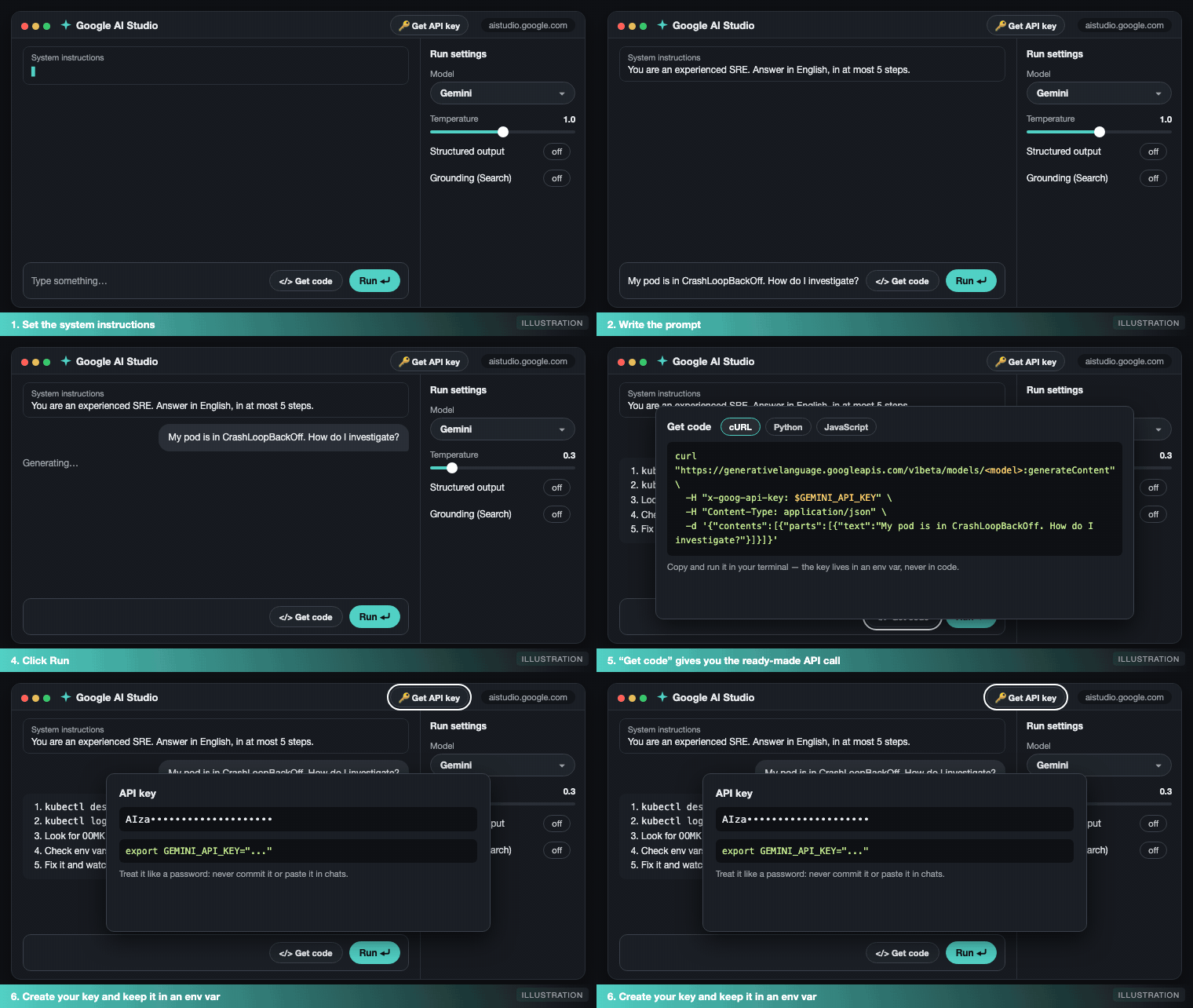 Animated illustration (not a real screenshot): system instructions, prompt, Run settings (model and temperature), Run, Get code with curl, and the key in an environment variable. The real interface may use different names and positions.
When you open aistudio.google.com, a new chat prompt is already there. The routine:
- Click the Run settings icon (the tune icon, top right) and write the System Instructions: the model’s role and rules, for example “You are an assistant that answers in English, in 5 lines or fewer”.
- In the same panel, pick the model and adjust the parameters: temperature, safety settings, structured output, function calling (the model asks to call your functions), code execution, and Google Search grounding (answers backed by search results).
- Type your question in the “Type something…” box and click Run.
- Tweak the prompt or the parameters and run it again. Iterating is the real work.
- Click Get code to see the same call ready to use in curl, Python, JavaScript, and other languages.
- Save the prompt to come back later or share it with your team.
Model names change all the time: prefer the latest Gemini models in the selector and copy the exact name from there. There are also other prompt types, such as realtime streaming and video generation. To write better prompts, see prompt engineering for tech professionals.
Temperature, demystified
The model generates text by choosing the next word among candidates, each with a probability. Temperature controls how much risk it takes:
- Low: sticks to the most likely options. Predictable answers, good for extracting data, classifying, or generating JSON.
- High: accepts less likely options. Varied answers, useful for names and brainstorming, with more risk of going off the rails.
Run the same prompt three times with each value and compare. The mechanism is explained in how an LLM works.
Structured output: JSON in the shape you asked for
If the answer feeds a program, free text gets in the way. Turn on Structured output in Run settings and define a schema; the model then answers in JSON in that shape. An idea for ticket triage:
{
  "type": "object",
  "properties": {
    "title": { "type": "string" },
    "priority": { "type": "string", "enum": ["low", "medium", "high"] },
    "tags": { "type": "array", "items": { "type": "string" } }
  },
  "required": ["title", "priority"]
}
Even so, validate the output in your code: the schema reduces errors, it doesn’t eliminate them.
Creating and storing the API key
To call the Gemini API outside AI Studio, you need a key:
- Go to the keys page at aistudio.google.com/apikey.
- Click Create API key. For new users, a default Google Cloud project is created after accepting the terms; existing Cloud users can import their projects.
- Restrict the key to the Gemini API, to limit the damage if it leaks.
The key is a credential, like a password. Keep it in an environment variable:
export GEMINI_API_KEY="paste-your-key-here"In projects, use a secrets manager or a .env file listed in .gitignore; the reasoning is in environment variables and the 12-factor app. Two rules with no exceptions: never put the key in front-end code (anyone can read the JavaScript in the browser) and never commit it to Git. If it leaks, delete the key and create another one.
Calling the API with curl
The Gemini API is a REST API: you send JSON over HTTP and get JSON back (see what is a REST API). Replace <model> with the exact name copied from AI Studio:
curl "https://generativelanguage.googleapis.com/v1beta/models/<model>:generateContent" \
  -H "x-goog-api-key: $GEMINI_API_KEY" \
  -H "Content-Type: application/json" \
  -X POST \
  -d '{
    "contents": [
      {
        "parts": [
          { "text": "Explain in 3 sentences what an environment variable is." }
        ]
      }
    ]
  }'
The key goes in the x-goog-api-key header, read from the environment variable. The body follows contents → parts → text, and the response carries the text in candidates. Get code generates this call already filled in with the parameters you tuned.
The same in Python
With the official Google GenAI SDK, install the package:
pip install google-genaiAnd run:
from google import genai

# The client reads the key from the GEMINI_API_KEY environment variable
client = genai.Client()

response = client.models.generate_content(
    model="<model>",
    contents="Explain in 3 sentences what an environment variable is.",
)
print(response.text)
The key doesn’t appear in the code: genai.Client() finds it in GEMINI_API_KEY.
Build mode: from prompt to app
In Build mode (aistudio.google.com/apps), instead of a prompt you describe an entire application. The flow, according to the documentation:
- Describe the app. You can add AI Chips, shortcuts to features such as image generation or Google Maps.
- Pick the platform: web (React with a Node server) or native Android (Kotlin with Compose).
- The agent generates the files and a live preview, with the Code tab next to it.
- Iterate through chat or annotation mode: highlight part of the UI and describe the change.
- Export: download a ZIP, use two-way GitHub sync, or publish to Cloud Run (a custom domain requires a paid project).
The app’s API key stays on the server, as a secret. According to the Google I/O 2026 announcements, you can also export the project to Google Antigravity, Google’s agentic development platform, and send Android apps to the Play Store test track; check whether this is available on your account. To design screens before coding, see Google Stitch.
A 2026 change: Firebase Studio is being sunset. Signups closed in June 2026 and the service will shut down in March 2027, with data deleted. Google advises migrating to AI Studio (browser prototyping) or Antigravity (local, code-first). Core Firebase services are not affected.
Your data on the free tier
According to the AI Studio and Gemini API terms, on unpaid services Google may use prompts and responses to improve its products, and human reviewers may read them. So:
- don’t send customers’ personal data, contracts, sensitive code, or secrets;
- remember that privacy laws such as Brazil’s LGPD or the GDPR still apply: personal data needs a legal basis and careful sharing;
- for company data, use the paid tier (according to the terms, not used to improve products) or an enterprise platform.
Read the current version of the terms at aistudio.google.com/docs/terms and follow your company’s policy.
AI Studio, the Gemini app, or Gemini Enterprise Agent Platform?
Several products have “Gemini” in the name. In April 2026, Vertex AI was renamed Gemini Enterprise Agent Platform. Summary:
| Google AI Studio | Gemini app | Gemini Enterprise Agent Platform | |
|---|---|---|---|
| Who it’s for | Developers and makers | Anyone | Companies and platform teams |
| What it’s for | Prototyping prompts, getting an API key, building apps | Everyday assistant: chatting, summarizing, researching | Models, agents, governance, and security in production |
| Access | Google Account, free or paid tier | Google Account, free or paid plan | Google Cloud project with billing |
| Data | Free tier may be used for improvements; paid tier is not | Depends on activity settings; check the privacy hub | Built for enterprise data governance |
Checklist
- I tested the prompt in AI Studio with system instructions and a temperature suited to the task
- I used structured output with a schema when the answer feeds another program
- I created the key at aistudio.google.com/apikey and restricted it to the Gemini API
- The key lives in
GEMINI_API_KEY, out of the front end and out of Git - I copied the current model name from AI Studio instead of using an old one
- I didn’t send sensitive or personal data through the free tier
- I checked the current terms and limits on Google’s official pages
AI Studio is the place to fail fast and cheaply: validate the idea in the browser, and only then take the code, with the key safely stored, to production.