How to use ChatGPT: Chat, Work, files, and projects step by step
A practical ChatGPT guide for professionals in any field, including people who don't code: account and plans, Chat and Work, attachments, good requests, deep research, projects, memory, plugins, images, voice, scheduled tasks, and privacy.
AI$ open https://chatgpt.com▍You attach the log from an incident, or this month’s expense spreadsheet, and ask: “explain what happened and build five slides for tomorrow’s meeting.” Within minutes ChatGPT hands back a draft or a finished file for you to review. You don’t need to know how to code.
For a map of all the company’s products, including Codex and the API, see the OpenAI AI overview.
A heads-up: OpenAI renamed many features in 2025 and 2026. The names below follow the help center as of November 2026; check the official pages.
Create an account and pick a plan
The same account works in the browser (chatgpt.com), in the desktop app (macOS, Windows, and Linux), and in the iOS and Android apps.
The individual plans are called Free, Go, Plus, and Pro. For companies there are Business (formerly Team) and Enterprise; for schools and universities, ChatGPT Edu. Features and limits change: check the plans page. At work, use the account your company approved.
Chat or Work: the two modes
Since July 2026, ChatGPT has two modes:
- Chat: the usual quick conversation, for questions, summaries, and rewrites. It’s available on every plan.
- Work: an agent for multi-step tasks that end in a deliverable: a document, spreadsheet, presentation, PDF, or report. According to OpenAI, it’s available on eligible paid plans; the plans page also shows a limited Work allowance on Free, through the desktop app.
The desktop app also includes Codex, for programming (how to use Codex). To switch modes:
- On the web: select Work on the chat screen.
- On desktop: choose ChatGPT from the menu, then Chat or Work from the toggle, and click New chat or open a project.
- On mobile: tap the model name at the top and choose Work.
The old agent mode (ChatGPT agent) was discontinued; the help center points to Work instead.
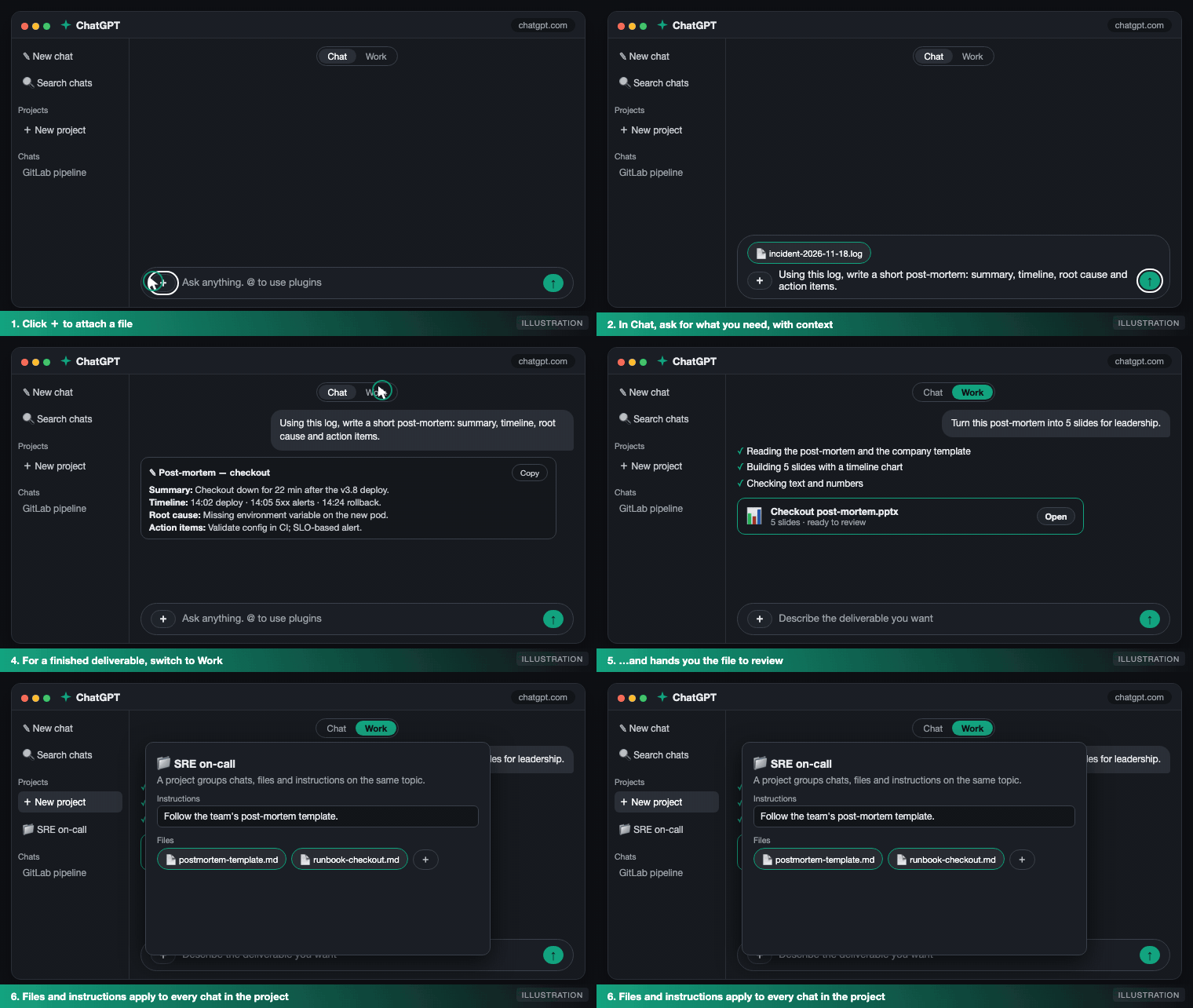 Animated illustration (not a real screenshot): + and “Add photos & files”, an attached log, a post-mortem in Chat as a writing block, the switch to Work, 5 slides delivered as a .pptx to review, and a new project. The real interface may use different names and positions.
| You want… | Use |
|---|---|
| A quick answer, a summary, or a rewritten email | Chat |
| To analyze a file and talk about it | Chat |
| A finished presentation, spreadsheet, or report | Work |
| A multi-step job built from several files | Work |
Attach files with the + button
- Click the + to the left of the message box.
- Choose Add photos & files.
- Select PDFs, documents, spreadsheets, images, or screenshots.
- Say what you want done with the file and send.
You can also drag and drop the file into the chat or paste an image or text; very long pasted text becomes an attachment.
How to write good requests
Say what you want, for whom, in what format, and within what limits. If context is missing, ask ChatGPT to ask you questions before answering:
[SRE/DevOps]
I attached yesterday's deploy log (no internal IPs or customer names).
Write a blameless post-mortem with: summary, timeline, probable cause,
impact, and 5 action items with an owner [NAME] and a due date. If the
log doesn't support a conclusion, write "can't be determined".

[HR]
Write a job posting for a junior support analyst, in a welcoming tone
and with inclusive language. Separate required and nice-to-have
qualifications. Don't ask for age, marital status, or a photo.

[Finance]
I attached a spreadsheet of expenses by cost center (anonymized data).
Compare the last 3 months, point out the 5 largest variances, and explain
each one in a sentence. Don't make up numbers: if data is missing, say what.
More examples by role in AI explained for people outside IT.
Writing blocks: what replaced Canvas
Canvas, the editing panel next to the chat, was removed from current models in May 2026, according to the help center. Text and code now appear as writing blocks and code blocks inside the response itself.
To edit, ask in the chat: “rewrite the second paragraph in a formal tone” or “cut it to 120 words.” For long documents, use Work.
Work: finished documents, spreadsheets, and slides
Use Work when the result is a file, not a paragraph:
- Switch to Work.
- Attach the source material: a report, a spreadsheet, your company’s slide template.
- Describe the deliverable: format, audience, and length. Example: “5 slides for leadership, with a timeline chart.”
- Follow the steps Work shows while it runs.
- Open the file and review it before sending: numbers, names, dates, sources, and tone.
Work gets things wrong like any AI, just with a polished finish, and the file goes out under your name.
Deep research: long research with sources
For questions that need many sources (comparing vendors, surveying an industry’s regulations), use deep research: it researches for a few minutes and delivers a report with cited sources. Type /deepresearch in the message box or click + and choose Deep research. Then open the key sources and confirm what the report claims.
Projects: a home for ongoing work
A project groups chats, files, and instructions about one subject: a client, the monthly close, a hiring round.
- In the sidebar, look for New project (the button name may vary).
- Give it a name and add the reference files.
- Write the standing instructions: tone, format, and rules.
- Start new chats inside the project: they begin with that context.
Projects can be shared with colleagues and have project-only memory, which doesn’t mix with everything else.
Memory and personalization
Settings › Personalization holds:
- Memory: ChatGPT can use saved memories and your chat history. You can turn it on or off, view, and delete what was stored; review it now and then.
- Custom instructions: rules for every chat, such as “I’m an HR analyst and prefer answers in bullet points.”
Plugins: the directory that replaced apps
Plugins connect ChatGPT to other services (email, calendar, drives, company tools); type @ in the message box to call one. In July 2026, the Plugin Directory replaced the App Directory, and the connections you already had keep working. Under the hood, plugins use MCP (Model Context Protocol), an open standard. Turn on only the ones the task needs and, at work, stick to the list IT approved.
Custom GPTs are being retired, with a migration path to plugins. According to OpenAI’s help center, the date is December 11, 2026, and some Enterprise workspaces can defer. GPT creators use Migrate to plugin in My GPTs. Check the dates on the official page.
Images and voice
- ChatGPT Images: describe the scene, style, and format, then refine in the chat. For company material, follow your brand rules.
- ChatGPT Voice: talk instead of typing, ideally on your phone. According to the help center, the old Advanced and Standard voice modes retire on December 11, 2026, and Read Aloud (reading the response out loud) stays. Check the official page.
Scheduled tasks
Scheduled tasks run on their own: once, at a set time (“every Monday at 8 a.m., summarize industry news”), or when an event happens. They live on the Scheduled page. According to the help center, event-triggered tasks aren’t available on Free or Go. Review the first few runs.
Privacy, work accounts, and data protection laws
On consumer plans (Free, Go, Plus, and Pro), your chats may be used to train the models. To turn that off, open Settings › Data controls and switch off Improve the model for everyone.
For a one-off topic, use Temporary Chat: according to OpenAI, it isn’t used to train models, doesn’t show up in your history, doesn’t create memories, and is kept for up to 30 days for safety.
On work accounts (Business, Enterprise, and Edu), OpenAI says it doesn’t train on your data by default. Even so, check your plan’s terms and your company’s policy.
Privacy laws such as Brazil’s LGPD or the GDPR apply to any personal data you send; this isn’t legal advice, so when in doubt talk to your legal team or DPO. Never paste into any AI:
- passwords, API keys, tokens, and other credentials;
- customer or employee data (ID numbers, salaries, health);
- contracts and confidential documents without approval.
More examples in Don’t do this with AI.
Old and new names
| Before | Now |
|---|---|
| Canvas | Writing and code blocks in the response |
| ChatGPT agent (agent mode) | Work |
| Connectors, then apps (App Directory) | Plugins (Plugin Directory) |
| Custom GPTs | Plugins, via migration |
| Tasks | Scheduled tasks |
| Team | Business |
| Advanced and Standard voice | ChatGPT Voice |
Common mistakes
- Trusting without checking: ChatGPT can get numbers, names, and sources wrong with full confidence.
- Vague requests: “make a report” produces something generic.
- Wrong mode: asking Chat for a full presentation, or opening Work for a one-line question.
- Personal account with company data: use the approved work account.
- Asking for professional decisions: legal, medical, and financial questions belong with qualified people.
Checklist
- I use my personal account for personal matters and the company-approved one for work
- I know how to switch between Chat and Work on the web, desktop, and mobile
- I write requests with a goal, audience, format, and limits
- I review every Work file before sending it
- I created a project with instructions and files for recurring work
- I reviewed memory and “Improve the model for everyone” in settings
- I don’t paste passwords, keys, or personal data into any AI
ChatGPT delivers drafts and files in minutes; checking them and making the final call are still up to you.