How to use Claude: chat, files, Artifacts, and Projects step by step
A practical guide to the Claude apps (web, desktop, and mobile) for professionals in any field: account and plans, your first chat, attachments, good requests, Artifacts, Projects, memory, Cowork, connectors, voice, and privacy.
AI$ open https://claude.ai▍Claude is Anthropic’s AI assistant: you type a request and it answers with text, summaries, tables, charts, and even ready-made Word, Excel, PowerPoint, and PDF files. You don’t need to know how to code: you just need to ask well and know the right features.
This guide covers the Claude apps (browser, desktop, and mobile), from sign-up to the advanced features. For a map of all the company’s products, start with the Anthropic AI overview.
A heads-up: Anthropic renamed and changed several features in 2025 and 2026. The button names below follow the official help center as of November 2026; if something looks different on your screen, check the official pages.
Create your account and choose a plan
You can use Claude in three places, with the same account:
- Browser: at claude.ai.
- Desktop: the desktop app, downloaded from claude.com/download.
- Mobile: apps for iOS and Android.
To get started, go to claude.ai, create your account, and read the privacy notices before accepting.
The current plans are called Free, Pro, Max, Ultra, Team, Enterprise, and Education. Free already includes web search, file creation, memory, connectors, Artifacts, Skills, and up to 5 Projects, with the Sonnet and Haiku models. Pro adds the Opus model, Research, Claude Code, Claude in Chrome, and Claude for Microsoft 365. Team and Enterprise add single sign-on (SSO) and admin controls. Prices and limits change; see the plans page. At work, use the plan your company approved.
Your first chat
- Go to claude.ai (or open the app) and start a new chat.
- Type your request in the message box and send it.
- Read the answer and ask for tweaks: “shorter,” “as bullet points,” “in a formal tone.”
- If you like, pick another model in the model selector (its name and position vary).
- Use the sidebar to go back to old chats, Projects, and Artifacts.
Tip: when you change topics, start a new chat so Claude doesn’t mix contexts.
The + menu: files, connectors, search, Research, and Skills
The + button in the message box holds the tools:
- Files: upload PDFs, documents, spreadsheets, and images and ask for a summary, a table, or points of attention. In the desktop app you can also add a folder.
- Connectors: link Claude to apps such as Gmail, Google Drive, Slack, Microsoft 365, and CRMs.
- Web search: on by default for individual plans and off by default on Team and Enterprise, where the admin decides.
- Research: on paid plans, Claude researches for several minutes and delivers a report with cited sources.
- Skills: saved, reusable instructions that companies can manage centrally.
How to write good requests
Say what you want, who it’s for, what format, and what limits. If context is missing, ask Claude to ask you questions first. Three examples:
[SRE/DevOps]
You are an experienced SRE. Below is the timeline of yesterday's
incident (no customer names or internal IPs). Write a blameless
postmortem with: summary, impact, likely cause, what worked,
what didn't, and 5 action items with an owner [NAME] and a due date.
[paste the timeline here]

[HR]
Create a 30-day onboarding plan for a support analyst who starts on
Monday. Use a table with week, activity, owner [NAME], and what they
should know by the end. Warm tone, no jargon.

[Finance]
I attached a CSV with expenses by cost center (anonymized data).
Compare the last 3 months, point out the 5 biggest variances, and
explain each one in a sentence. Don't make up numbers: if data is
missing, say what is missing. At the end, create a bar chart.
For more examples from HR, finance, and other areas, see AI explained for people outside IT.
Artifacts: your work next to the chat
Artifacts are work products that open in a panel next to the chat: a document, a chart, a presentation. You ask for changes in the chat and the Artifact updates. All of them are saved in the Artifacts tab of the sidebar.
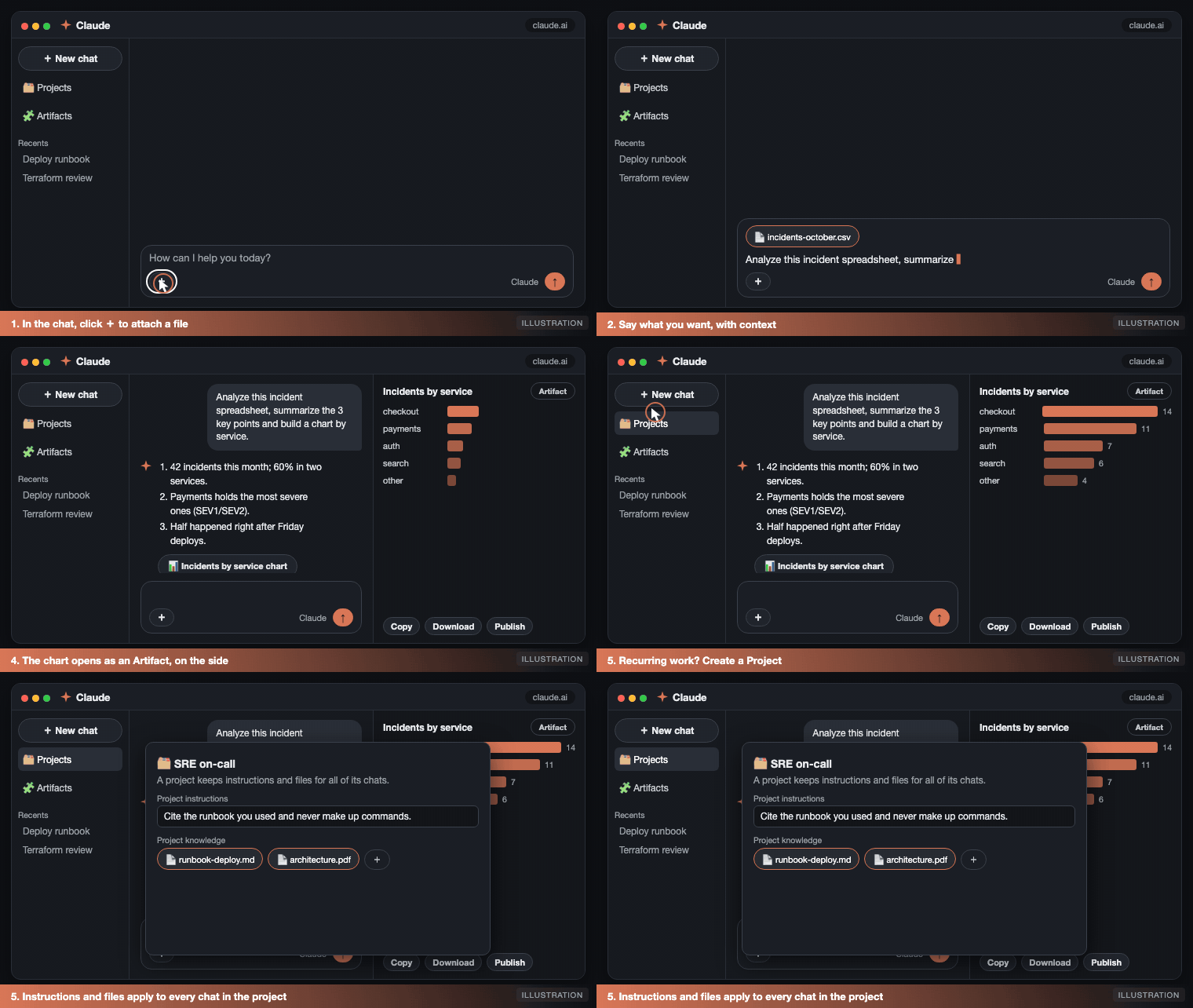 Animated illustration (not a real screenshot): clicking + and “Add files,” attaching a CSV, asking for an analysis with a chart, getting three key points, watching the chart open as an Artifact next to the chat (with Copy, Download, and Publish), and creating a Project with instructions and knowledge files. The real interface may use different names and positions.
To start from a template, use Output in the message box. According to the help center as of November 2026:
- Docs, Slides, and Design: on all plans.
- Data: Pro and above.
- Sheets and Whiteboards: in beta, Pro and above.
- Motion: in beta, on Team and Enterprise.
This plan breakdown changes often; check the official page. Artifacts depend on two options under Settings > Capabilities: code execution and file creation. Artifacts created in chat before September 16, 2026, show up as “legacy.”
Projects: a home for ongoing work
A Project brings together chats, reference files (the “project knowledge”), and standing instructions. Good for a client or a monthly report. Free allows up to 5 Projects.
- In the sidebar, click Projects.
- Click + New Project and give it a name and description.
- Add files to the project knowledge with +.
- Click Set project instructions and write the rules, for example: “Answer in English, in a formal tone, citing the section of the manual you used.”
Every chat started inside the Project begins with that context.
Memory and settings
Memory lets Claude remember preferences and context across chats. You turn it on in Settings, and you can view and edit what was saved; in 2026 it became organized by categories and it also works in Cowork. Settings also holds your general instructions, Capabilities, and privacy options.
Cowork in a nutshell
Cowork is Claude’s agent mode for multi-step tasks that aren’t coding, such as building a report from several sources. It’s on paid plans and works in the desktop app (Mac, Windows, and Linux in beta), on the web, and on mobile.
It has scheduled tasks, plugins, connectors, a built-in browser, and approval modes (Manual, Auto, and Skip); start with Manual. Since September 16, 2026, chat, Cowork, and Projects are part of one unified experience.
Connectors, Claude in Chrome, and Claude for Microsoft 365
- Connectors: use MCP (Model Context Protocol), an open standard for connecting AI to data and tools. With them, Claude gets to see real data.
- Claude in Chrome: an extension that opens in Chrome’s side panel and reads pages, clicks, and navigates for you. Paid plans, in beta.
- Claude for Microsoft 365: an add-in for Excel, Word, and PowerPoint (available on paid plans), with Outlook in beta. Install it from AppSource or ask IT.
If you code, you can go further with Claude Code, which isn’t part of the Free plan.
Voice mode (beta)
Voice mode lets you talk to Claude. It’s in beta, on all plans, and works best on mobile: tap the sound-wave icon in the message box. Good for rehearsing a presentation or sorting out ideas away from your computer.
Privacy, training, and privacy laws
On consumer plans (Free, Pro, and Max), you choose whether your chats can be used to train the models. The choice lives in the privacy settings and can be changed at any time. According to Anthropic, if you allow training, data is kept for up to 5 years; if you don’t, for 30 days. The choice applies to new or resumed chats.
On Team and Enterprise plans and the API, data isn’t used for training by default; feedback you send (thumbs up or down) is an exception. Check your plan’s terms and your company’s policy.
Privacy laws such as Brazil’s LGPD or the GDPR apply to any personal data you send. This guide isn’t legal advice; when in doubt, talk to your legal team or DPO. Never paste into Claude (or any other AI):
- passwords, API keys, tokens, or production credentials;
- customer or employee data (ID numbers, salaries, health);
- contracts and confidential documents without company approval.
The full list is in Don’t do this with AI.
Common mistakes
- Trusting without checking: Claude can get numbers, names, and sources wrong with full confidence.
- Vague request: “make a report” produces something generic.
- Personal account with company data: use the approved corporate plan.
- Connecting everything: turn on only the connectors the task needs.
- Leaving the agent alone: in Cowork and Chrome, review actions before approving them.
- Asking for professional decisions: legal, medical, and financial questions belong with qualified professionals.
Summary table
| Feature | What it’s for | Availability (general) |
|---|---|---|
| Chat with files | Summarize, rewrite, analyze, create files | All plans |
| Research | Long research with cited sources | Paid plans |
| Artifacts | Documents, charts, and slides next to the chat | All plans; some templates on paid plans only |
| Projects | Knowledge and standing instructions per topic | All plans; up to 5 on Free |
| Memory | Remember preferences across chats | All plans |
| Cowork | Multi-step tasks as an agent | Paid plans |
| Claude in Chrome | Act in the browser | Paid plans, in beta |
| Claude for Microsoft 365 | Claude in Excel, Word, and PowerPoint | Paid plans; Outlook in beta |
| Voice mode | Talk instead of typing | All plans, in beta |
Checklist
- I created my account on the right plan (personal or company-approved)
- I write requests with a goal, audience, format, and limits
- I created at least one Artifact and found it in the Artifacts tab
- I created a Project with instructions and knowledge files
- I reviewed memory, Capabilities, and the training choice in the privacy settings
- I don’t paste passwords, keys, or personal data into any AI
- I check numbers, names, and sources before using an answer
Claude works best when you treat every answer as a good first draft: it speeds up the work, and the final review is still yours.