How to use Claude Code: installation, first session, CLAUDE.md, and MCP
A step-by-step Claude Code guide for developers and DevOps: where it runs, requirements, the native installer, a first session with /init, permission modes, a CLAUDE.md for an infra repo, MCP, hooks, subagents, GitHub Actions, billing, and safety practices.
AI$ claude▍You open a terminal in your project folder, type claude, and write: “the billing integration test is failing, find out why.” The tool reads the code, runs the tests, explains the cause, and proposes a fix, asking for permission before it touches any file. That is Claude Code, Anthropic’s agentic coding tool. This guide goes from installation to GitHub Actions, focused on people who look after code and infrastructure. For the full map of products, see the overview of Anthropic’s AI.
A heads-up: Anthropic changed several names and addresses in 2025 and 2026. Always check the official docs at code.claude.com/docs.
What Claude Code is and where it runs
Claude Code is a coding agent: it reads your repository, edits files, runs commands, and uses your tools (git, package managers, cloud CLIs), always under the permission rules you set. The post on AI coding assistants compares completion, chat, and agents.
The same engine shows up in several places:
| Where | How to use it |
|---|---|
| Terminal | The claude CLI, the starting point of this guide |
| VS Code | Official extension (also works in Cursor) |
| JetBrains | Plugin for IntelliJ and friends; requires the CLI |
| Desktop app | The Code tab in the Claude app (paid plan) |
| Web | claude.ai/code, also in the iOS and Android apps |
It also runs in Slack, GitHub Actions, and GitLab CI/CD.
Requirements
You need one of these accounts:
- A paid Claude plan: Pro, Max, Ultra, Team, or Enterprise;
- A Claude Console account (the API platform at platform.claude.com), billed by usage;
- Or access through your cloud provider.
The Free plan does not include Claude Code. To compare options before subscribing, see Claude Code, Grok, ChatGPT, and Copilot: when to use each.
Installation
The recommended method is the native installer, which updates itself. On macOS, Linux, or WSL:
# Native installer (recommended)
curl -fsSL https://claude.ai/install.sh | bash

# Homebrew alternative
brew install --cask claude-code

# Advanced option: npm (Node 22 or later, never with sudo)
npm install -g @anthropic-ai/claude-code@latest
On Windows, in PowerShell:
# Native installer
irm https://claude.ai/install.ps1 | iex

# WinGet alternative
winget install Anthropic.ClaudeCode
Check the installation:
claude --version   # shows the installed version
claude doctor      # diagnoses the installation and configuration
There are also packages for apt, dnf, and apk.
First session, step by step
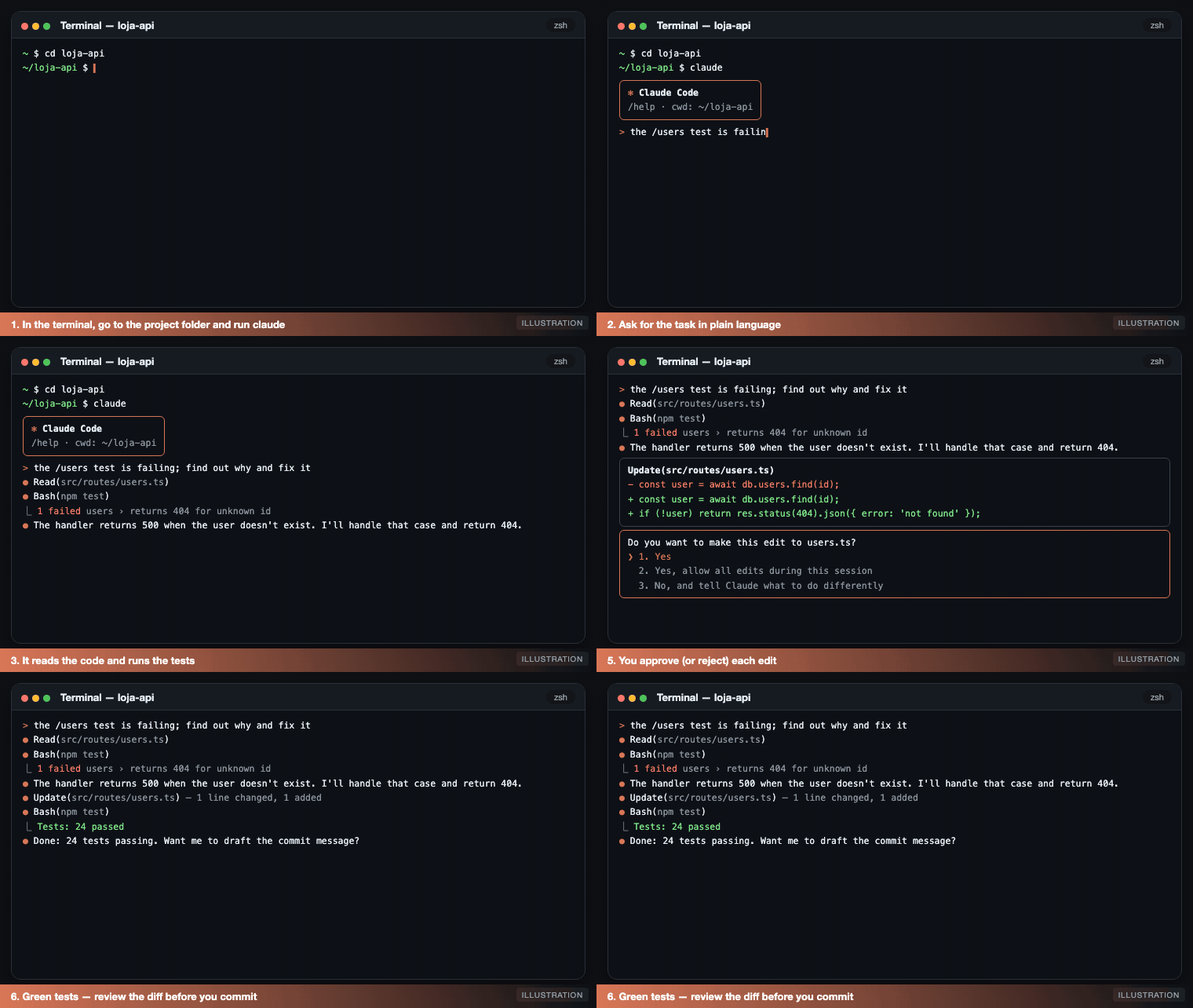 Animated illustration (not a real screenshot):
cd loja-api and claude in the terminal, a plain-language request to fix a failing test, reading the code and running npm test, an explanation of the cause, a proposed diff, a permission prompt (Yes / Yes, allow all edits during this session / No), the edit applied, tests passing, and a suggested commit message. The real interface may use different names and positions.
- Go to the project folder:
cd ~/projects/platform-infra. - Run
claude. - The first time, your browser opens for login (to switch accounts later, use
/login). - Run
/init: Claude Code analyzes the repository and creates a CLAUDE.md with a project summary and the key commands. - Review the generated CLAUDE.md, cut anything generic, and commit it.
- Start with small, read-only tasks:
Explain the structure of this repository and which CI pipelines exist.
List the Terraform modules and which environments each one affects.
The Helm lint job is failing in CI. Find the cause and propose a fix, without applying it.
Give context (file, error, goal) and say what not to do.
Permission modes
By default, Claude Code asks for approval before editing files and running commands. Switch modes with Shift+Tab:
| Mode | What it does | When to use it |
|---|---|---|
default (Manual) |
Asks for permission before edits and commands | The everyday default |
acceptEdits |
Accepts file edits without asking | Tasks where you review the diff at the end |
plan |
Analyzes and proposes a plan without changing anything | Investigation and large changes |
auto |
A classifier reviews actions before they run | Long tasks, with supervision |
There are also dontAsk and bypassPermissions, which do not stop to ask during a run; bypassPermissions skips permission checks entirely. Use these two only in isolated environments, such as a container or a disposable VM with no real credentials. On your own machine, with access to the cloud and the production kubeconfig, they are an invitation to accidents. Check the exact behavior of each mode in the docs.
CLAUDE.md: instructions for every session
CLAUDE.md is loaded at the start of every session and says how the project works, which commands to use, and what is off-limits. Claude Code also reads AGENTS.md and has an auto memory that saves learnings across sessions.
Best practices:
- Keep it short: under 200 lines, as the docs recommend. Every line uses context.
- Write verifiable rules (“run
terraform validatebefore finishing”), not vague wishes. - List the real commands and spell out what is forbidden.
- Commit the file and review it like code.
An example for an infrastructure repository:
# platform-infra

Terraform (AWS) and Helm charts for your-org's services.

## Layout
- terraform/modules/: reusable modules
- terraform/envs/{dev,staging,prod}/: one state per environment
- charts/: Helm charts for the services

## Commands
- Format: terraform fmt -recursive
- Validate: terraform -chdir=terraform/envs/dev validate
- Plan: terraform -chdir=terraform/envs/dev plan
- Lint charts: helm lint charts/*

## Rules
- NEVER run terraform apply or destroy. Show the plan and stop.
- NEVER use the production kubectl context. Only kind-dev.
- Do not read or edit .env files, prod *.tfvars, or secrets/.
- Every prod change goes through a PR with human review.
- Run fmt and validate before saying you are done.
Useful commands
| Command | What it is for |
|---|---|
/help |
Lists the available commands |
/clear |
Clears the context and starts a fresh conversation |
/resume |
Resumes a previous session |
/usage |
Shows your usage |
claude -p "..." |
Runs a single request and exits (good for scripts) |
claude -c |
Continues the most recent conversation in the folder |
Use /clear when you switch topics: context from another task hurts more than it helps.
MCP: connecting external tools
MCP (Model Context Protocol) is the open standard that connects AI applications to data and tools. Created by Anthropic, it was donated in December 2025 to the Agentic AI Foundation, part of the Linux Foundation. In Claude Code, you add servers from the CLI:
# Remote server over HTTP (example from the docs)
claude mcp add --transport http notion https://mcp.notion.com/mcp

# Project scope: written to .mcp.json, which goes into the repository
claude mcp add --transport http --scope project internal-docs https://mcp.example.com/mcp

# User scope: available in all your projects
claude mcp add --transport http --scope user internal-docs https://mcp.example.com/mcp
There are three scopes:
- local: just you, just this project (the default);
- project: shared with the team through the
.mcp.jsonfile; - user: just you, across all projects.
In the session, /mcp shows server status and handles OAuth authentication. Treat every server like a dependency: trusted sources only, with the least access possible.
Hooks, subagents, skills, and plugins
With the basics running, get to know the extension pieces:
- Hooks: scripts that run on events such as
PreToolUseandPostToolUse, for example to block dangerous commands or format after every edit. - Subagents: isolated workers that return only a summary, without cluttering the main conversation.
- Skills: Markdown instructions invoked as
/nameor loaded automatically. Type/to list them. - Plugins: packages that bundle skills, hooks, agents, and MCP servers, distributed through marketplaces. The official one is
anthropics/claude-plugins-official.
Claude Code in GitHub Actions
Run /install-github-app inside a session: the command walks you through installing the GitHub app and setting up the secret. Then just mention @claude in an issue or PR comment to ask for a review or a fix. The action also accepts a prompt input for automations without a mention.
A minimal workflow:
# .github/workflows/claude.yml
# Check the anthropics/claude-code-action README for the current inputs and permissions.
name: Claude Code
on:
  issue_comment:
    types: [created]
  pull_request_review_comment:
    types: [created]

jobs:
  claude:
    if: contains(github.event.comment.body, '@claude')
    runs-on: ubuntu-latest
    permissions:  # permissions to reply in PRs and issues
      contents: write
      pull-requests: write
      issues: write
      id-token: write
    steps:
      - uses: actions/checkout@v4
      - uses: anthropics/claude-code-action@v1
        with:
          anthropic_api_key: ${{ secrets.ANTHROPIC_API_KEY }}
Subscribers can generate a token with claude setup-token and store it in the CLAUDE_CODE_OAUTH_TOKEN secret. The credential always lives in secrets, never in the YAML.
Billing, in general terms
- Subscriptions (Pro, Max, and others) have usage limits: a 5-hour window and a weekly window, shared with chat and Cowork. Extra usage credits are optional.
- Console and API accounts pay per token used.
- Cloud providers bill through your cloud account.
/usage shows your consumption. Limits change; check the docs.
Safety for DevOps
An agent that runs commands on your machine has the same power you do. Non-negotiable rules:
- Never give the agent production credentials. Use dev or read-only cloud profiles and a kubeconfig with no prod context.
- Review every diff before committing, like a teammate’s PR. AI output can be confidently wrong.
- Autonomy only in a sandbox: a container or disposable VM with no real secrets.
- Do not paste secrets, customer data, or personal data into the prompt. Keep in mind privacy laws such as Brazil’s LGPD or the GDPR, and your company’s policy (don’t do this with AI has more examples).
- Check your plan’s privacy settings. On consumer plans (Free, Pro, and Max), you choose in the privacy settings whether your sessions may be used to train models. Team, Enterprise, and the API are not used for training by default. This is not legal advice; when in doubt, ask your legal team.
Checklist
- I installed with the native installer and
claude doctorshows no errors - I have a paid plan or a Console account (Free does not include Claude Code)
- I ran
/initand trimmed CLAUDE.md to under 200 lines, with explicit infra rules - I use
planor the default mode in sensitive repositories;bypassPermissionsonly in a sandbox - I added MCP servers only from trusted sources, in the right scope
- The GitHub Actions workflow reads the key from secrets, never from the YAML
- The agent has no access to production credentials or contexts
Claude Code works best when you treat it like a fast new teammate: clear context in CLAUDE.md, minimal permissions, and a review of everything it delivers.